All.pycharm.how to guide
Pycharm#
PyCharm#
Current situation#
There are multiple ways to develop on a remote server using PyCharm
-
VNC approach - PyCharm runs locally on the server using a "virtual screen" - Your laptop interacts with a VNC server to get the GUI locally - Pros: - Everything works - You can run anything like you are local on the server, since you are in practice just using a virtual screen - Cons: - Without enough bandwidth it's slow and not snappy enough
-
X11 approach - Same as VNC, but instead of sending bitmaps through VNC, a "compressed" version of the GUI is sent to the local computer directly - Pros: - Maybe faster than VNC - PyCharm window is like a native window on your laptop - Cons: - X11 is old crap developed long time again and not really supported any more - One needs to tunnel X11 traffic, set things up, and so on
-
PyCharm Gateway - New client-server architecture for PyCharm - A "headless" PyCharm runs on the server - A GUI client PyCharm runs on your laptop - Pros - It's as fast as possible, probably as fast as running locally - Cons - Need a PyCharm pro license (not a problem, we have money) - It's not super polished: kind of beta, but it will get better and better
-
PyCharm Remote Set-up - Edit locally and then PyCharm moves the files back and forth - Pros - Only requires ssh - Cons - You can't run / debug remotely
-
Approach 1) seems to require lots of memory and CPU and it's not really fast.
-
Approach 2) works but it's a pain to set-up and slow.
-
We want to try with 3)
- TODO(gp): @Juraj pls a short tutorial on how to install
- TODO(gp): @Juraj understand if it works, if it's fast, and if it requires less memory
How to run our cmamp container directly from PyCharm#
- PyCharm allows to run commands directly inside a container
-
In fact when we do
i docker_bashwe launch a container and run bash inside it, but PyCharm can do the same thing -
TODO(gp): @Juraj Let's both try this. There are some notes below about it
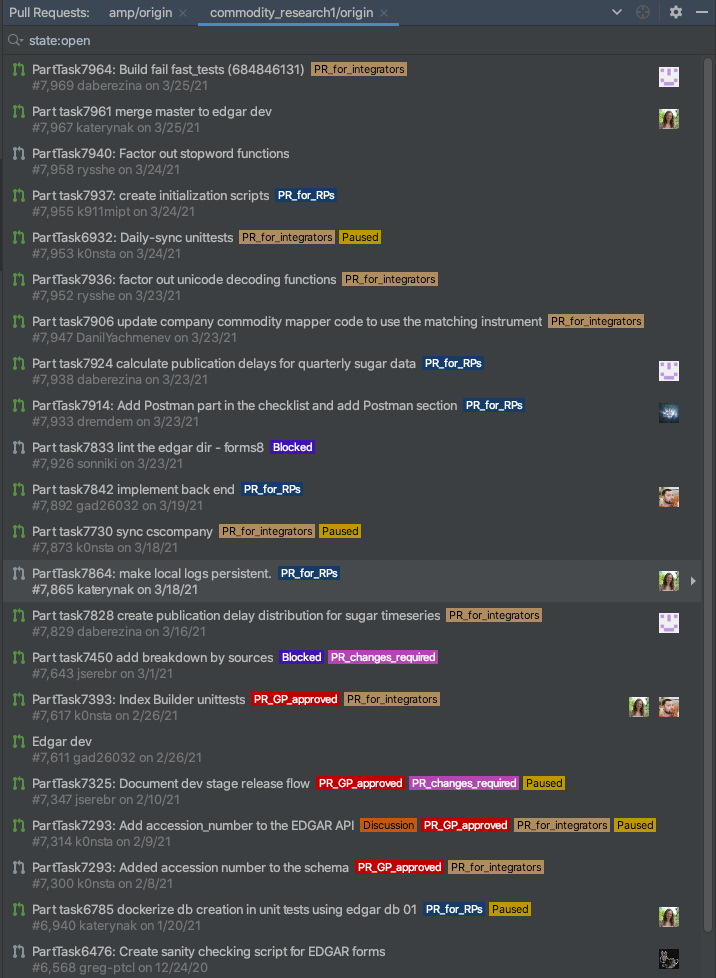
How to review a PR inside Pycharm#
-
CTRL + SHIFT + A -> View Pull Request
-
How to edit remote code#
-
You need to use a certain local directory (e.g., /Users/saggese/src/commodity_research1) and a remote directory (e.g., /wd/saggese/src/commodity_research1)
-
They need to be synced at the same git branch (e.g., master or AmpTask1112_Audit_amp_Docker_system_03)
-
Set-up Deployment
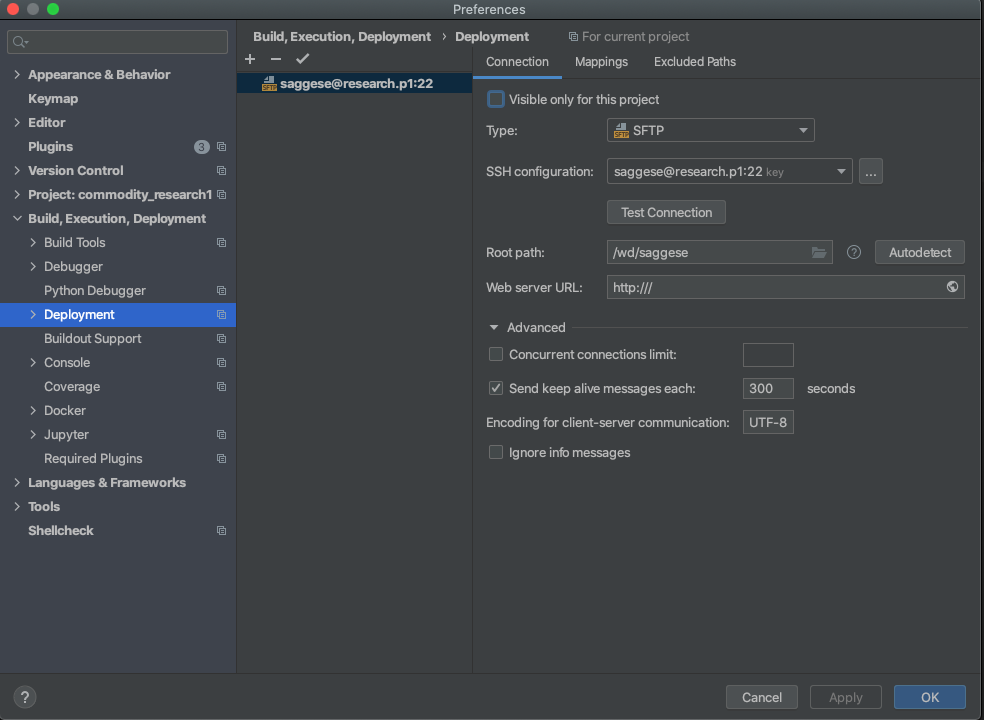
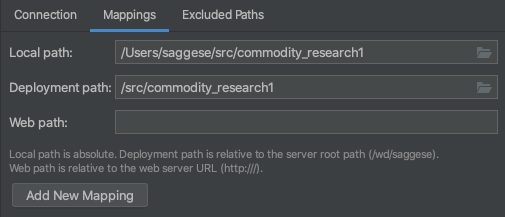
- The deployment options are
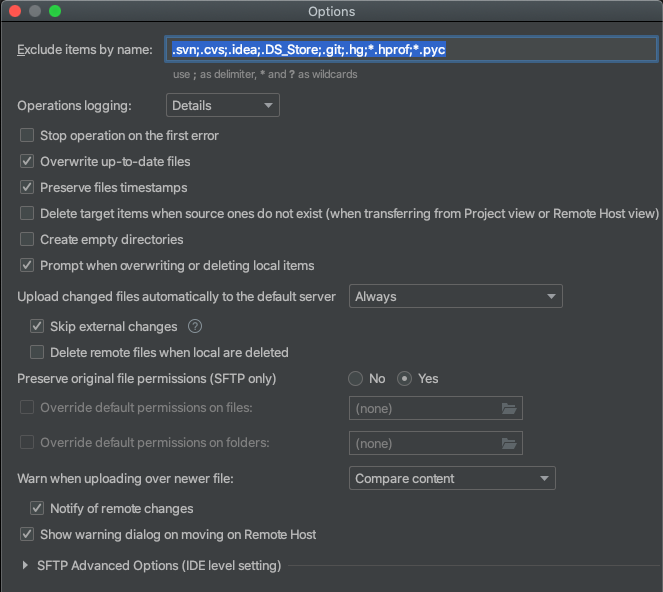
- You can see what file is changed in the file transfer window:

pycharm
- Develop on one node, sync, run on the server
-
Run local application with venv
-
Database
-
Run application inside Docker
-
Run application remotely inside Docker
General ssh config#
-
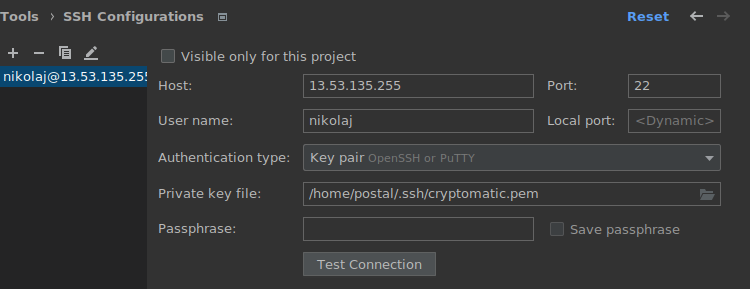
File | Settings | Tools | SSH Configurations
-
Once setup, ssh config can be used for all tools in PyCharm.
- Remote Interpreter
- DataGrip
- Deployment
- Etc.
DB connection via ssh#
Note: PyCharm Professional DataGrip is used as an example. There are numerous open source alternatives such as Beaver. Config below should apply to them also.
-
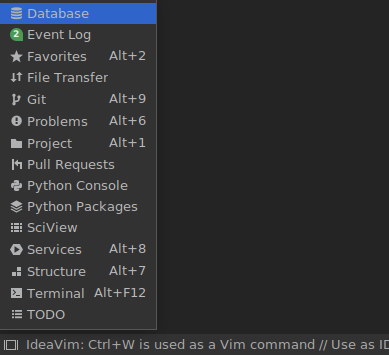
To add a new data source in DataGrip, go to the database section in the lower left corner.
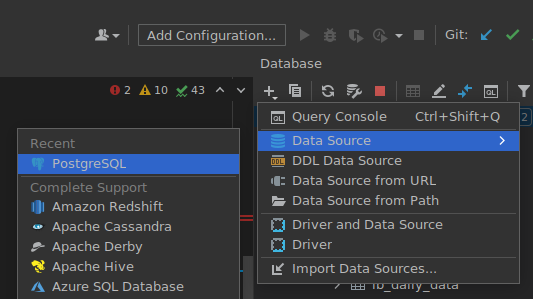
-
Then pick your desired data source from the dropdown in the upper right corner.
-
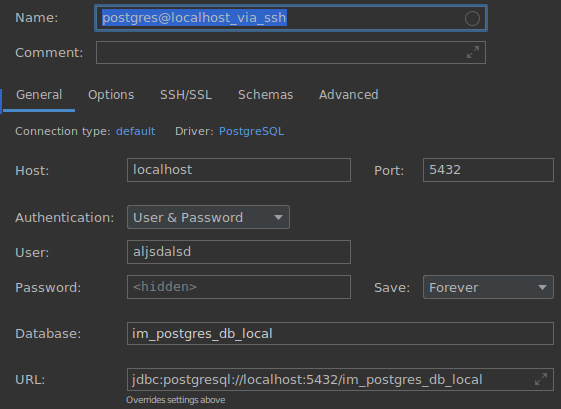
You will be presented with a dummy config that needs to be replaced with proper data as shown below.
-
Before that is done, be sure that proper ssh info is added in SSH/SSL section.
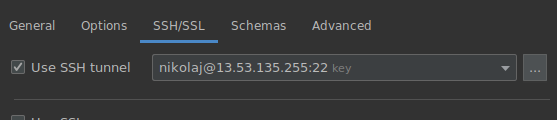
Deployment with remote repository (through sync)#
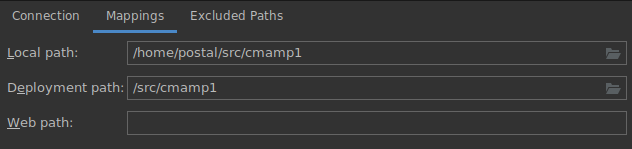
Note: Before setting up deployment, pull the cmamp repo on EC2 instance and use the same name as on your local machine (example: cmamp1). Always try to keep both repos in sync via git. For more subtle and simpler changes use File | Reload All From Disk . This will upload changes to the remote repo.
-
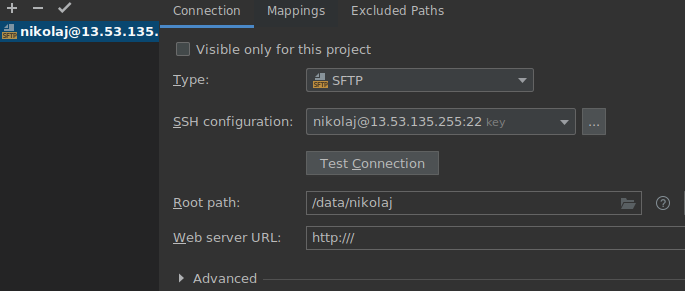
Tools | Deployment | Configuration
-
Tools | Deployment | Options
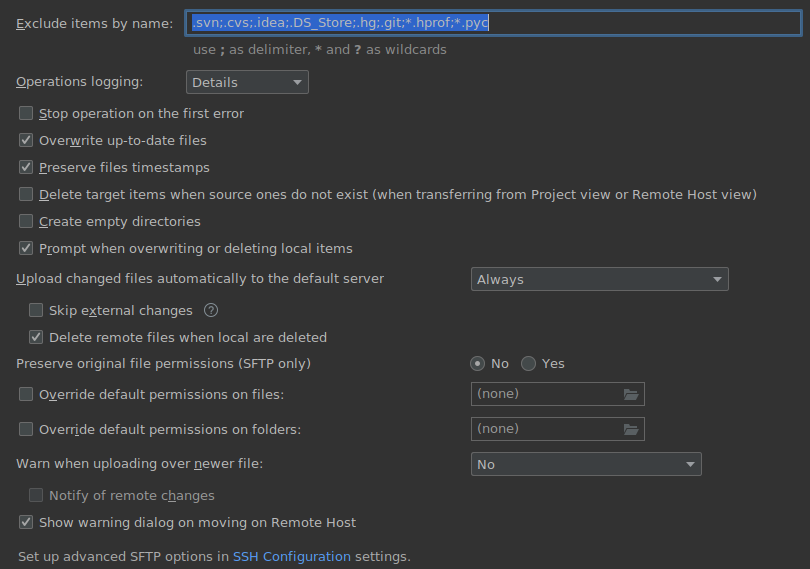
- Uncheck "Skip external changes" and check "Delete remote files"
-
Tools | Deployment | Automatic Upload
- Check it
-
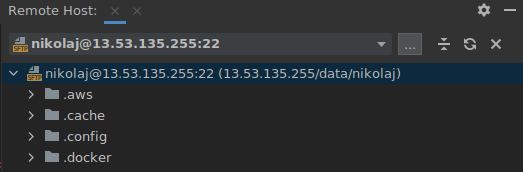
Tools | Deployment | Browse Remote Host
PUDB - remote debugging - ToDo#
How to run tests inside a container#
-
Note that the "start SSH session..." action is available only in PyCharm Professional Edition, while the terminal itself is available in both Professional and Community editions.
Installing PyCharm Professional#
Windows#
- Download the installer using this link
- Run the installer and follow the wizard steps.
- To run PyCharm, find it in the Windows Start menu or use the desktop shortcut.
macOS#
There are separate disk images for Intel and Apple Silicon processors.
-
Download the image, based on your processor using this link
-
Mount the image and drag the PyCharm app to the Applications folder.
-
Run the PyCharm app from the Applications directory, Launchpad, or Spotlight.
Linux#
**Using tar archives **
-
Download the tar archive using this link
-
Unpack the pycharm-*.tar.gz file to a different folder, if your current Download folder doesn't support file execution:
> tar xzf pycharm-*.tar.gz -C <new_archive_folder> -
The recommended installation location according to the filesystem hierarchy standard (FHS) is
/opt. To install PyCharm into this directory, enter the following command:> sudo tar xzf pycharm-\*.tar.gz -C /opt/ -
Switch to the bin subdirectory:
> cd <new archive folder>/pycharm-\*/bin # E.g., > cd /opt/pycharm-\*/bin -
Run pycharm.sh from the bin subdirectory
> sh pycharm.sh
Using snap packages
-
For Ubuntu 16.04 and later, you can use snap packages to install PyCharm.
> sudo snap install pycharm-professional --classic # or > sudo snap install pycharm-community --classic -
Run in the Terminalu
> pycharm-professional
# or
> pycharm-community
# or
> pycharm-educational
Connecting via PyCharm gateway (SSH)#
The first thing you need to do is sign up for a free trial license or use it if it already have
Then make sure you have a VPN connection to our VPC
- Click on Connect via SSH
- Into Username: write <
> Example: richard - Into Host: write <
> Example: 172.30.2.136 - Mark the Specify private key check box and locate the private key from the zip which was sent in the onboarding process. Example: crypto.pub
- Leave Port: 22 as it is.
- Click on Check Connection and Continue.
- Select IDE version: PyCharm Py 213.6777.x
- Locate your directory. Example: /data/richard
- Click on Download and Start IDE.
Connecting via VNC#
- Make sure you have a VPN connection.
Installing VNC
- Install VNC using this link:
Sysadmin has sent you:
os_password.txt- Your username
$USER - A key
crypto.pubthat looks like:-----BEGIN OPENSSH PRIVATE KEY----- # gitleaks:allow b3BlbnNzaC1rZXktdjEAAAAABG5vbmUAAAAEbm9uZQAAAAAAAAABAAABlwAAAAdzc2gtcn NhAAAAAwEAAQAAAYEA0IQsLy1lL3bhPT+43sht2/m9tqZm8sEQrXMAVtfm4ji/LXMr7094 ... hakqVTlQ2sr0YTAAAAHnNhZ2dlc2VAZ3BtYWMuZmlvcy1yb3V0ZXIuaG9tZQECAwQ= -----END OPENSSH PRIVATE KEY-----
Let's say you are connected via VNC.
- Login into the OS.
- Run pycharm.sh using terminal (should be there)
> bash /opt/pycharm-community-2021.2.3/bin/pycharm.sh
Configuration#
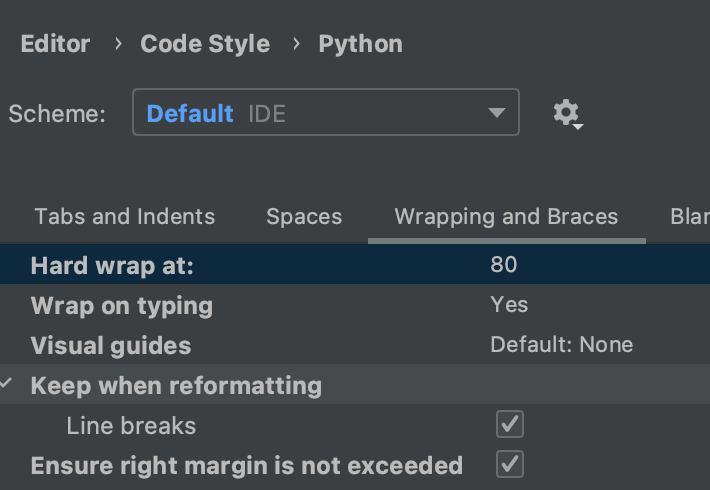
Reflow#
- Set the reflow to reindent
Some recommended plug-ins#
- Vim
- Grazie
- Wrap-to-column
- GitHub Copilot